A little order after every shoot

From camera card
to organized folders.

Bring your photos and videos home. Preview what will copy,
choose where it goes, and skip what you’ve already imported.

Apple Silicon and Intel Macs macOS 14+

One completed import free. See pricing and details

YOUR NEXT IMPORT, AT A GLANCECard Preview Library
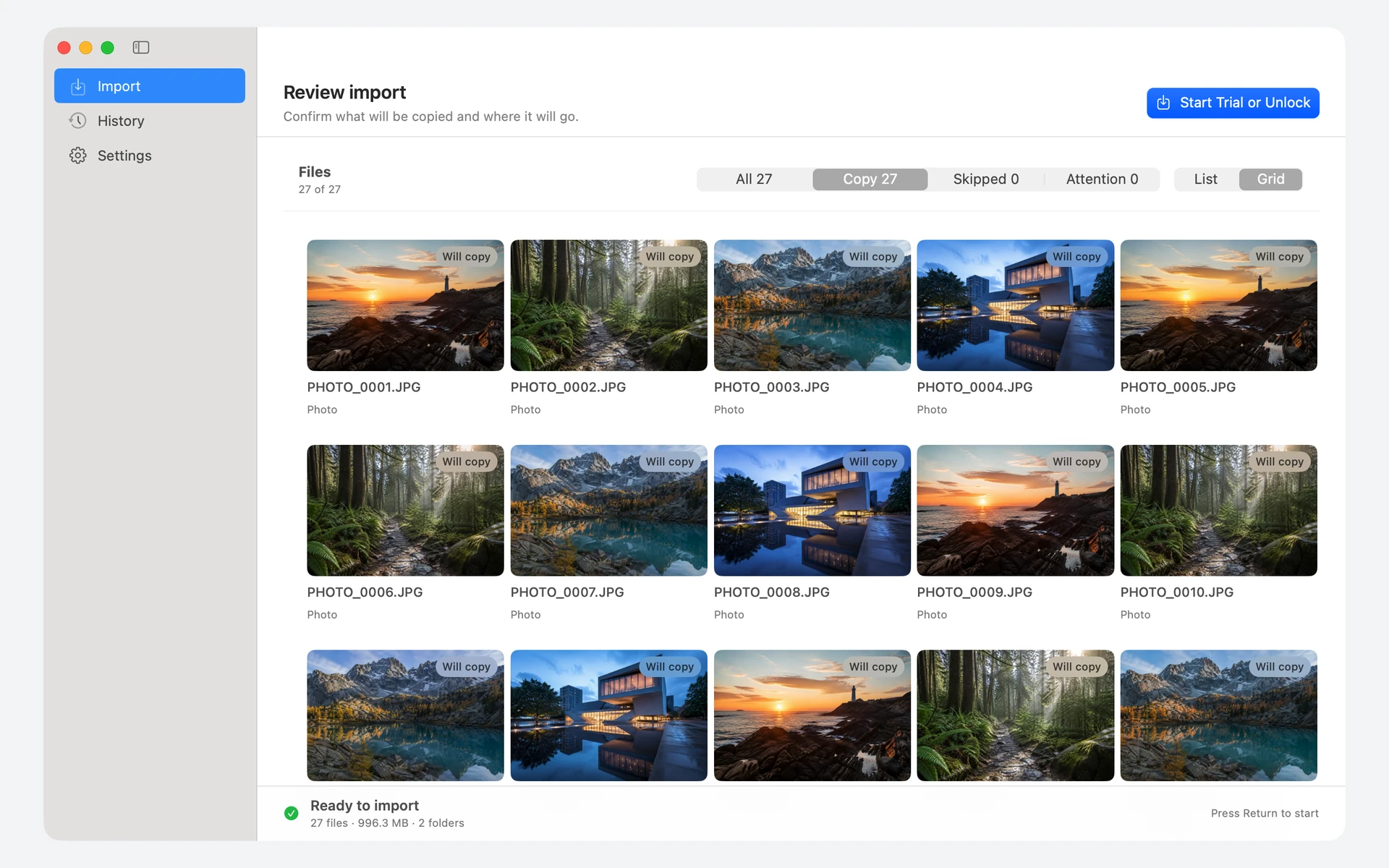
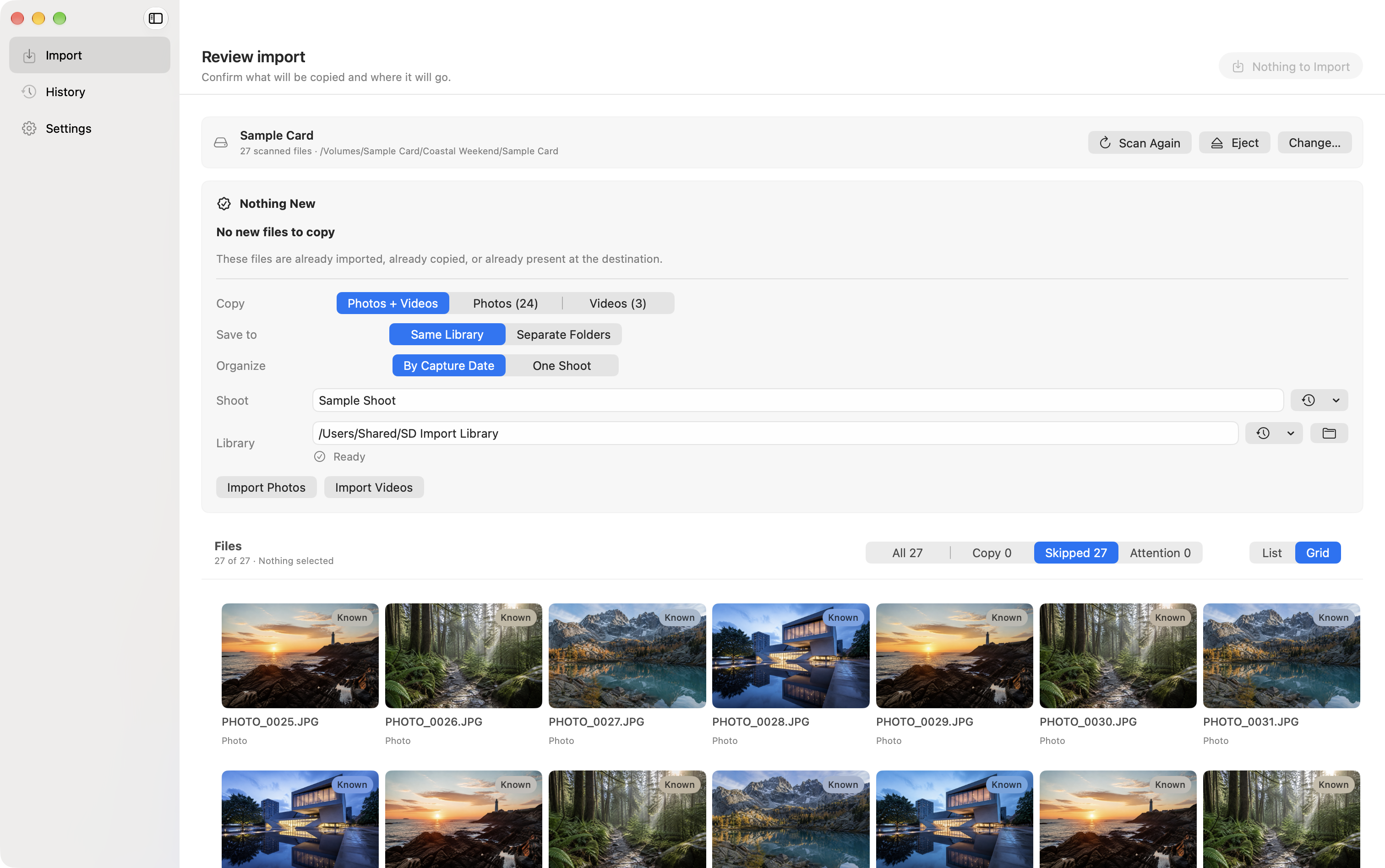
SD Card Import showing a grid preview of 27 sample photos and videos.

Review first. Copy when you’re ready.

Made for what you shootRAWJPEGVIDEOCAMERA METADATA

A clearer way to import

Less sorting.
More getting on with it.

The useful checks, right where you need them.

01 / PREVIEW

Know what
will copy.

See new files, previous imports, and destination folders before you start.

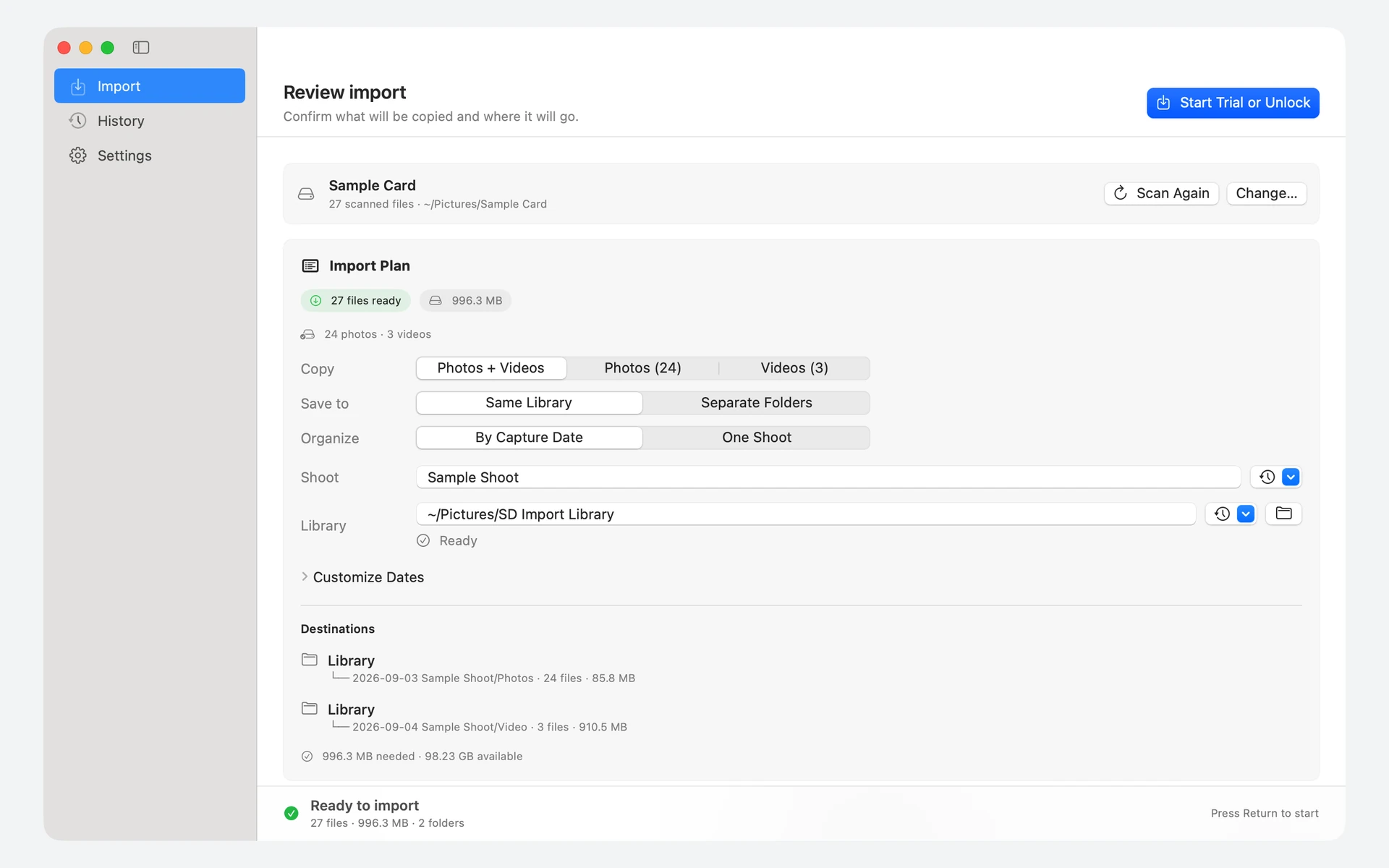
A plan you can check
27 filesready to import

Photos + Videos Your library

From the sample import shown below
02 / ORGANIZE

A place for
every shoot.

Group files by capture date. Keep photos and videos together, or give each its own destination.

Your folders, your way
Photo Library
Coastal Weekend
Mountain Morning
Example shoot names
03 / REMEMBER

Same card.
Only new files.

SD Import remembers previous imports, so the next scan can focus on what’s new.

On a repeat scanNothing New27 known files. Zero to copy.From our sample card’s repeat scan

SD Import · Direct edition

One card. A clear finish.

Follow a real import from card detection
to the final copy receipt. Just 20 seconds.

Screencast steps
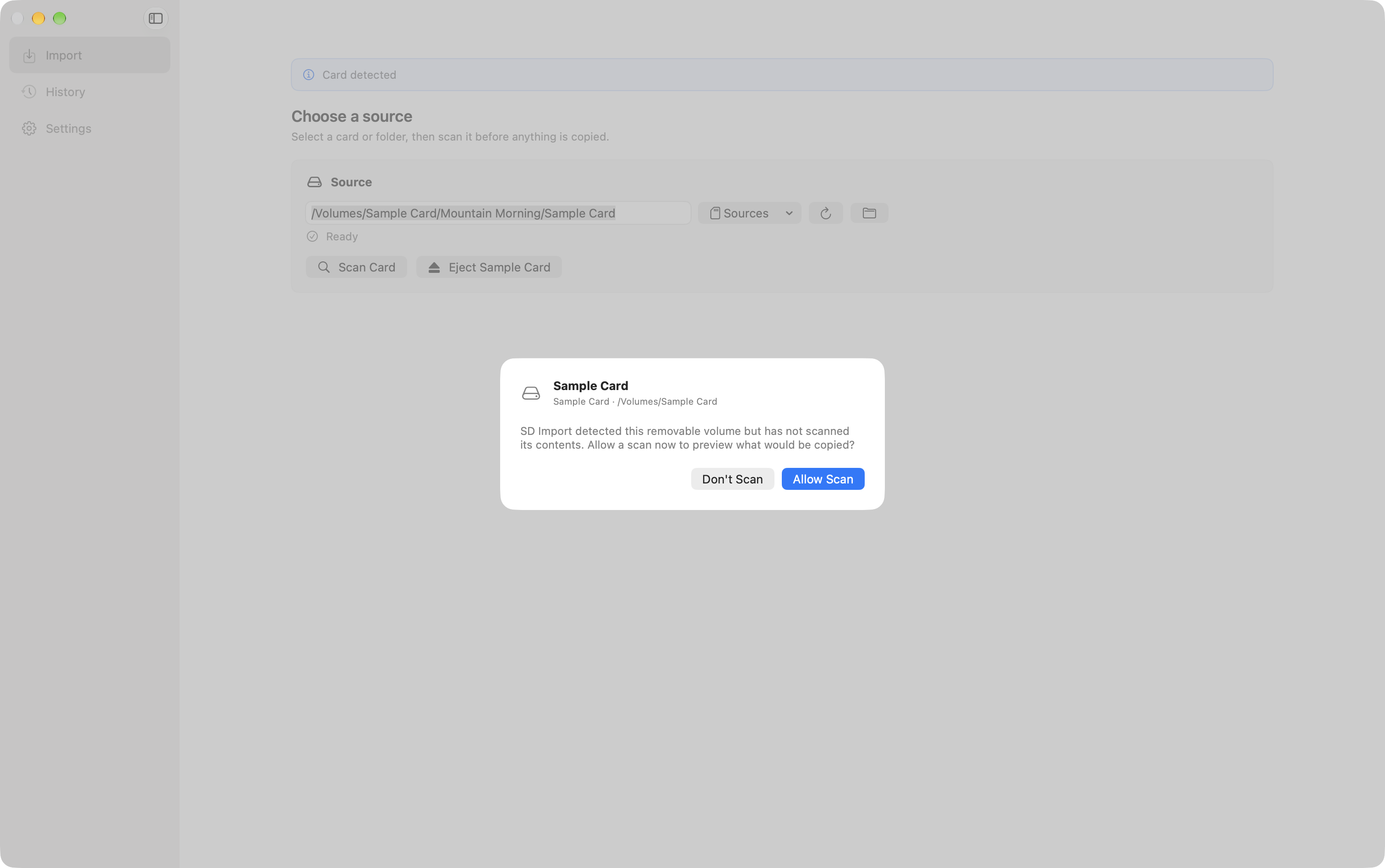
  1. Inserting a removable card wakes SD Import and asks permission before scanning.
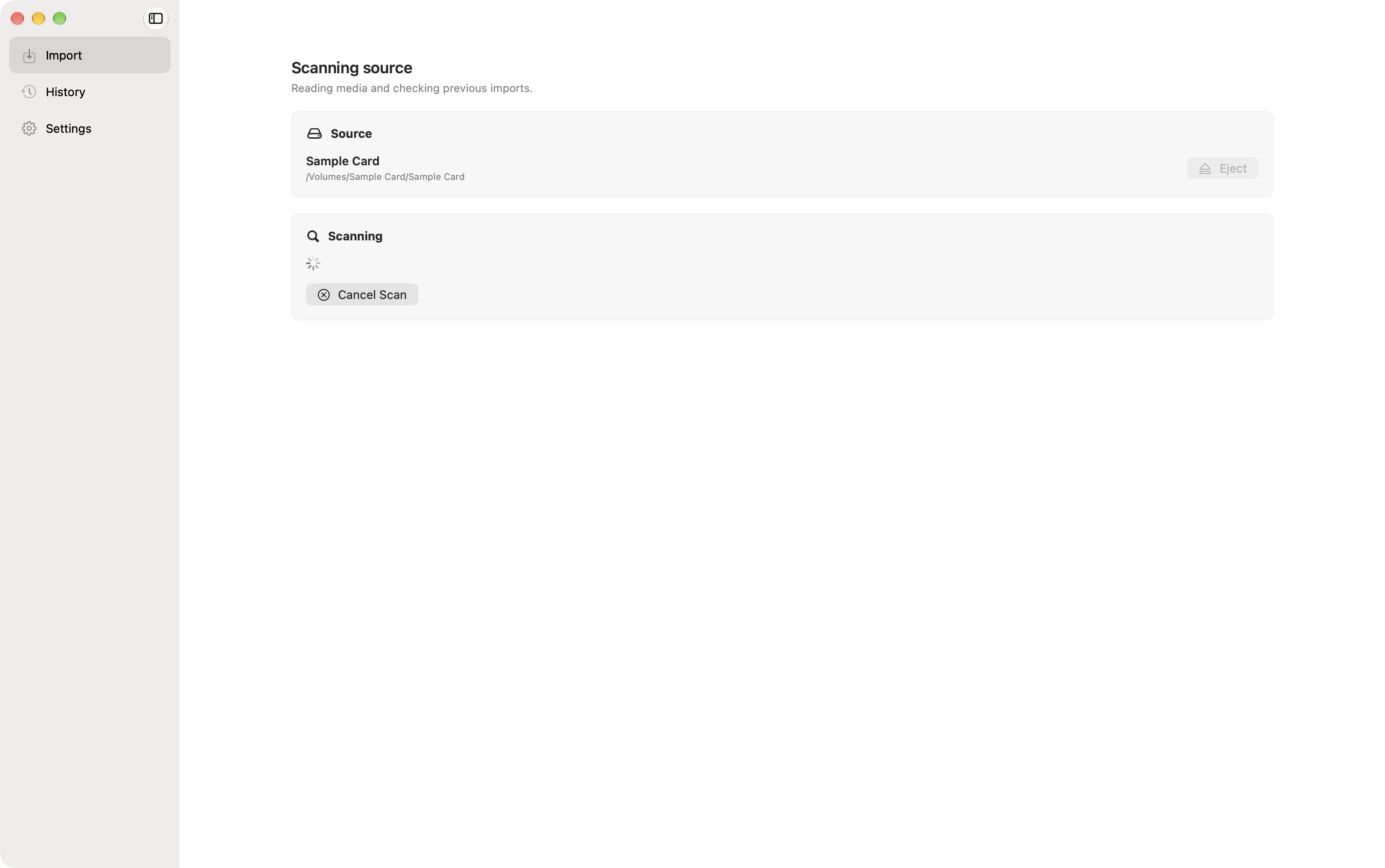
  2. The live scan counts the card's photos and videos without copying anything.
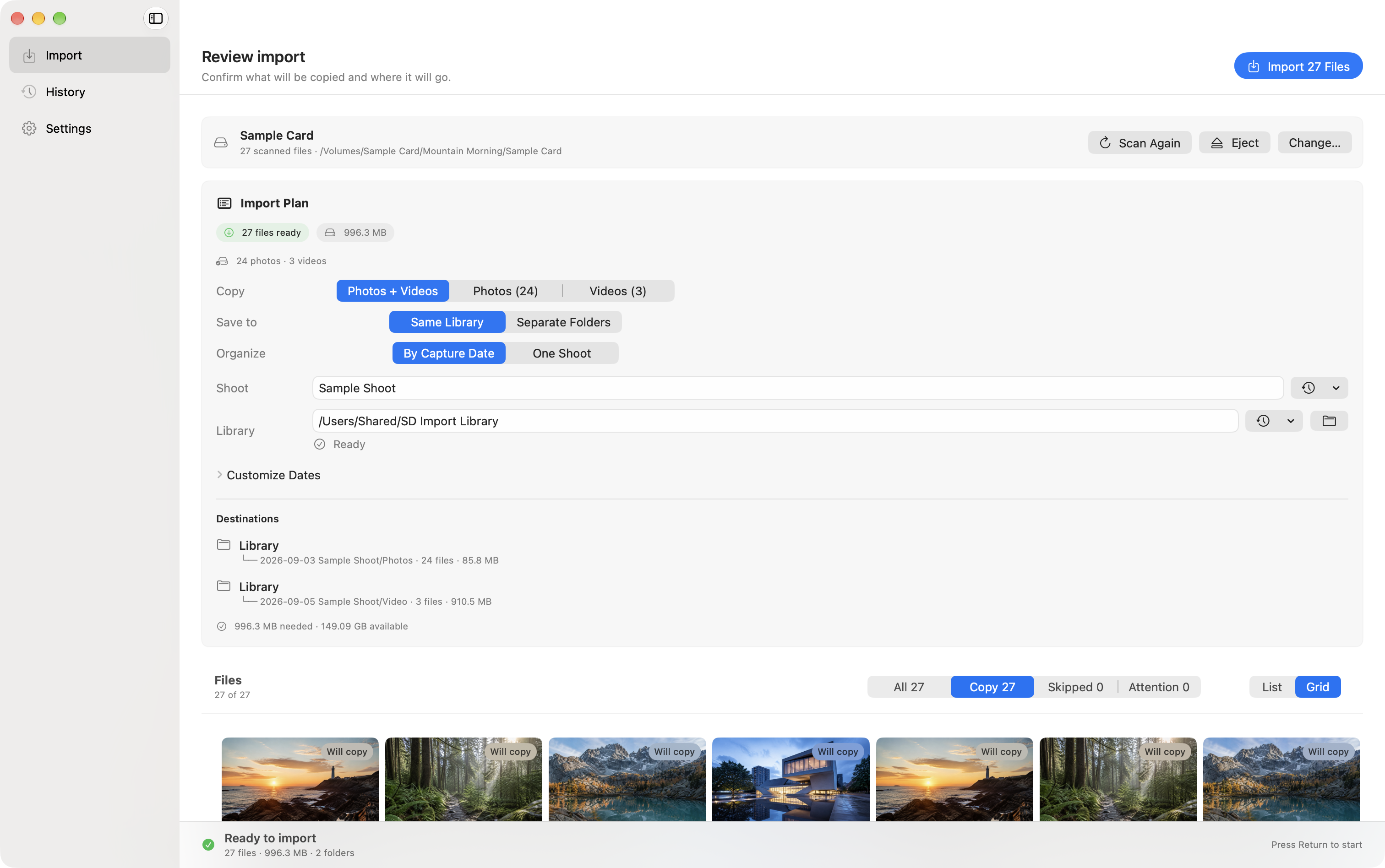
  3. The review confirms 27 files, Sample Shoot, and the selected SD Import Library destination.
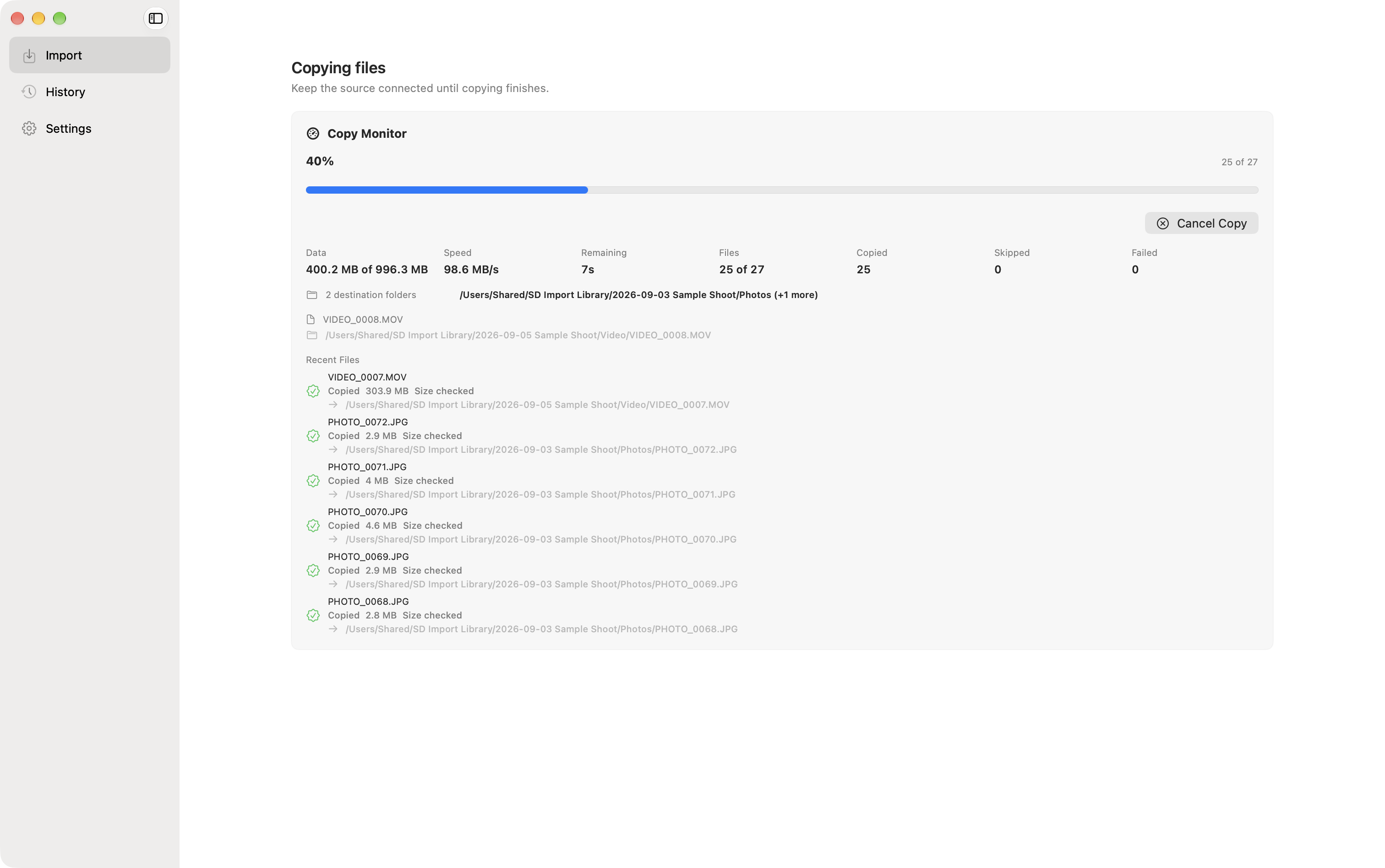
  4. The copy monitor shows continuous transfer progress for the synthetic sample media.
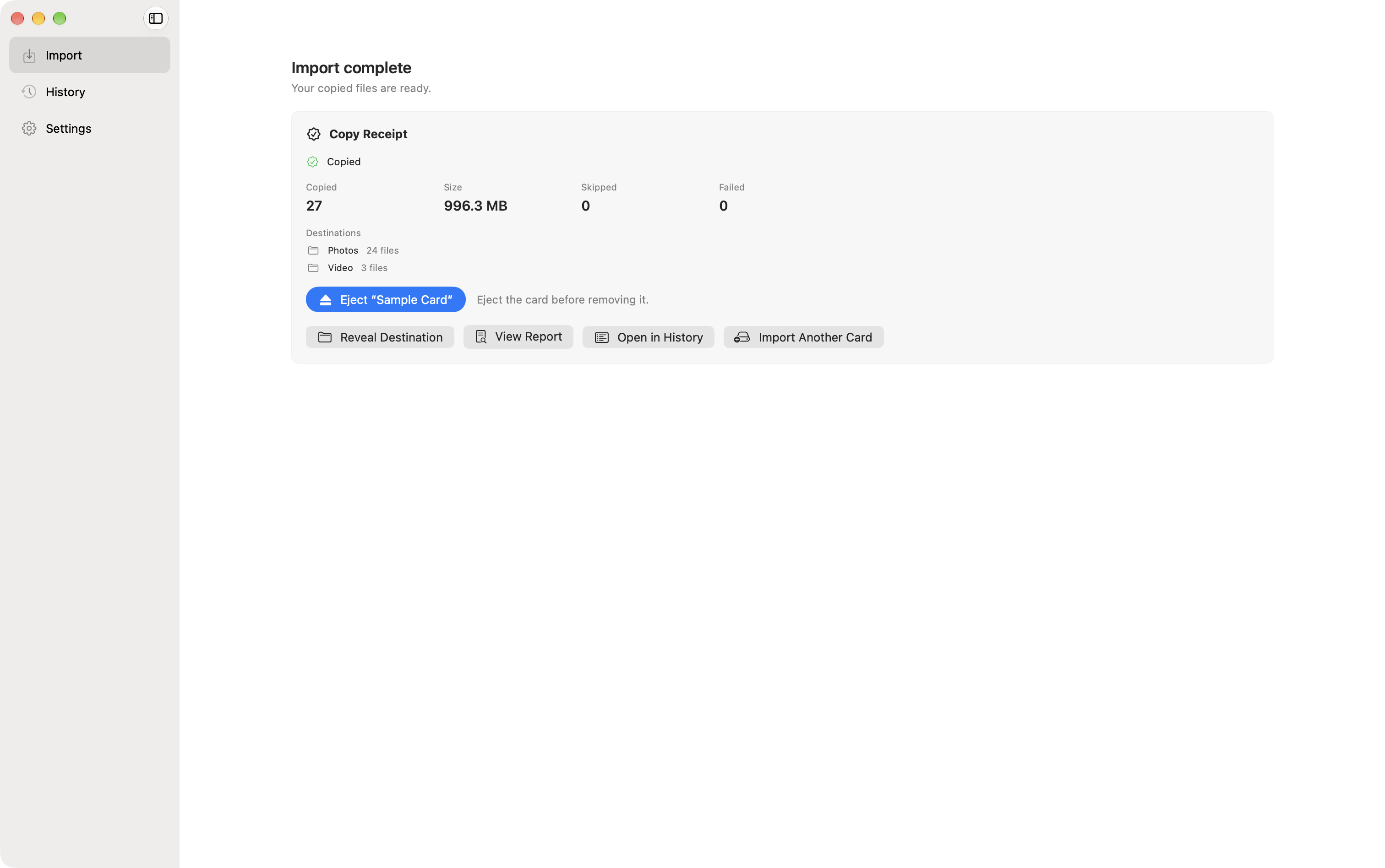
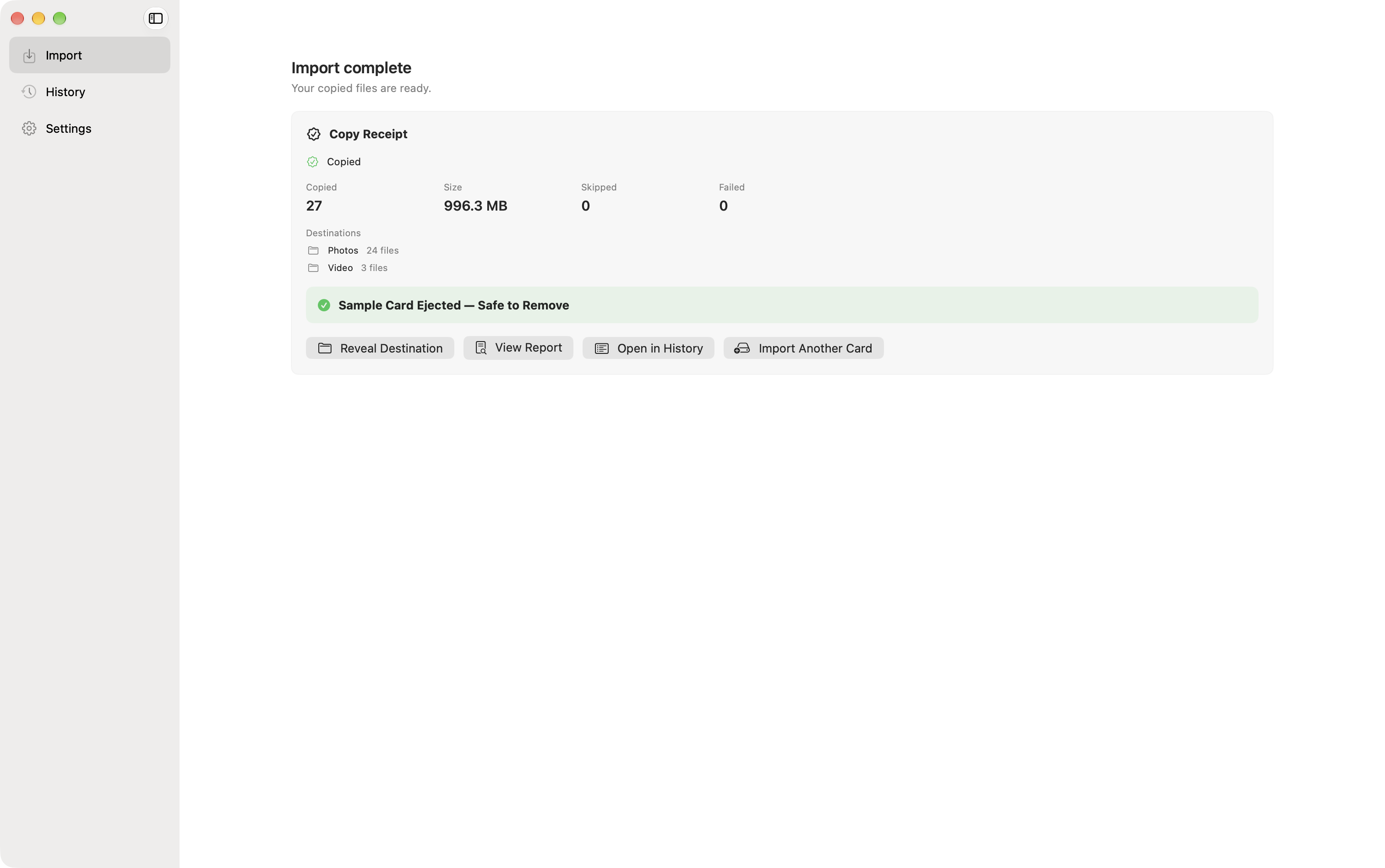
  5. The receipt confirms 27 copied files and zero failures, with an option to safely eject the card.
20 seconds in the real app: detect, scan, review, copy, and confirm the receipt.

The App Store edition

Meet SD Card Import.

The same care for your photos and videos, with installation, updates, and purchases handled through Apple.

AVAILABLE ON THE MAC APP STORE

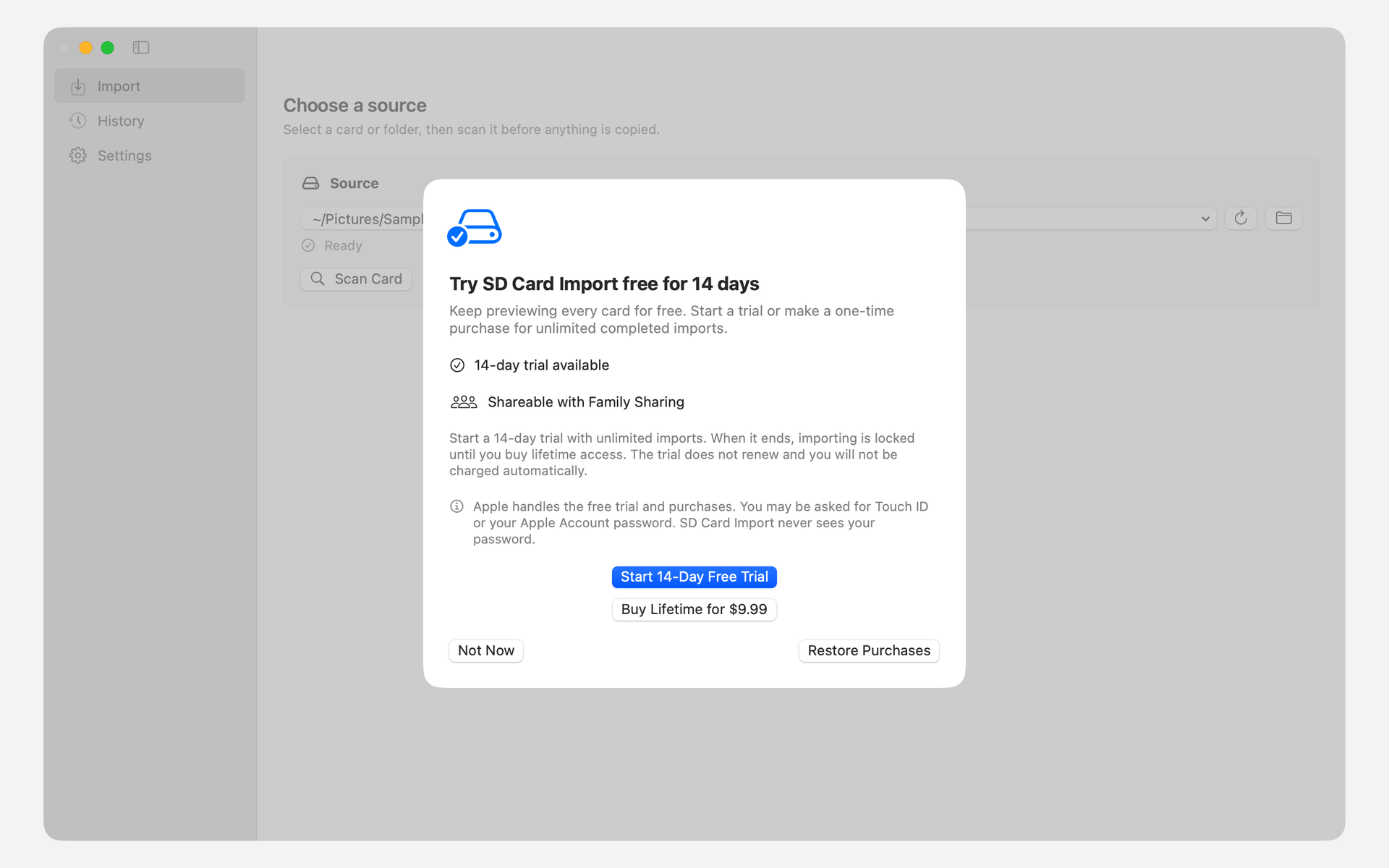
One completed import, free.
Then $9.99 once for unlimited imports.

U.S. price. Local pricing may vary.
Family Sharing included. No subscription.

Get SD Card Import

Ready when your card is

Make room
for your next shoot.

Download SD Import, the free direct edition, and give every import a clear plan.

SD IMPORT · DIRECT DOWNLOAD

FreeOpen source. Yours to keep.

Download SD Import

Apple Silicon Mac · macOS 14 or newer
Signed and notarized for macOS.

First time? Read the install guide
Your media stays in the folders you choose.Read our privacy policy

A few good questions

Before you
plug in.

Need a hand?
Which photos and videos can I import?

SD Card Import recognizes common RAW, JPEG, and video formats. The scan also shows camera metadata sidecars and unsupported files, so you can review what is on the card. See the guide for the full workflow.

What happens if I import the same card again?

SD Card Import recognizes files recorded in its import history and skips repeat copies. The review shows what’s new and what’s already imported before you begin.

Where do my files go?

Into the destination folders you choose. You can keep photos and videos together, use separate destinations, and organize by capture date. Review the planned paths before copying.

Does SD Card Import delete anything from my card?

SD Card Import copies your media without automatically deleting the originals from the source card. When the import finishes, you can safely eject a supported removable card.

How do the two editions differ?

The direct download linked here is free and open source under the MIT License. You can download the signed app or explore the source on GitHub. SD Card Import, the App Store edition, includes one completed import free, then a one-time $9.99 U.S. purchase for unlimited imports with Family Sharing. Scanning and previewing remain free.

What do I need to get started?

A Mac running macOS 14 or newer, a mounted card or source folder, and enough space in your destination. Install SD Card Import from the App Store and choose your folders. The install guide covers both editions.

A clear plan before you copy.

Review the files, shoot name, and destination folders together.Open original image